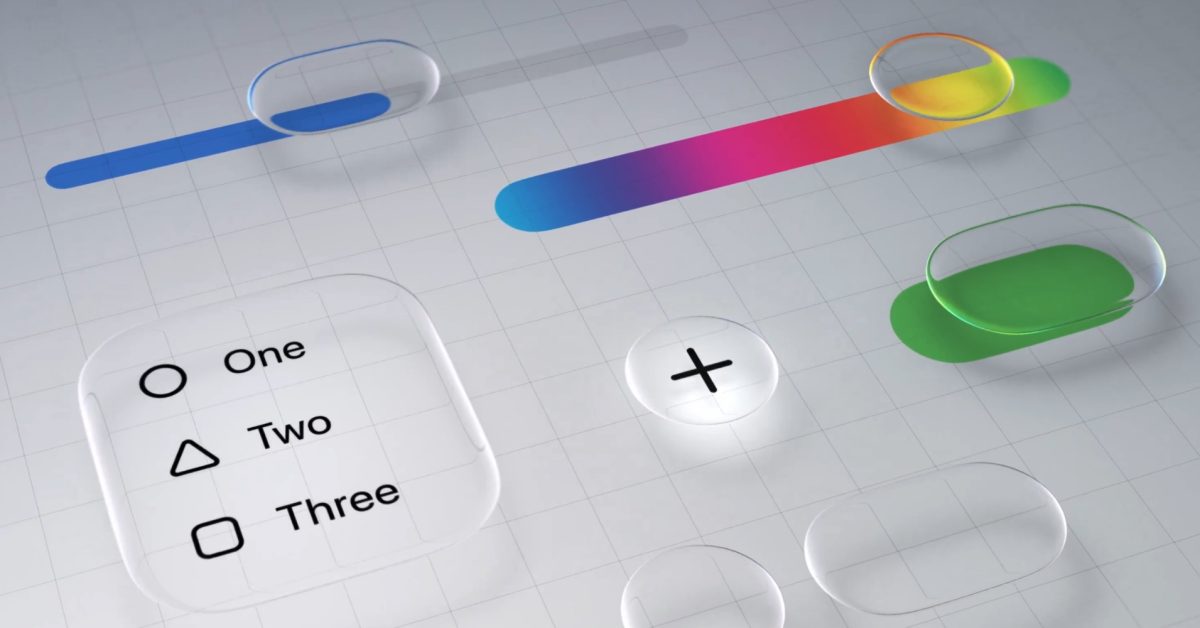
- iOS 26.4 beta 4 introduces a new 'Reduce Bright Effects' setting, allowing users to disable flashing UI elements in Liquid Glass.
- This new option complements the existing 'Tinted' look from iOS 26.1, giving users unprecedented control over the controversial Liquid Glass design.
- The update directly addresses user feedback by providing a more familiar, less visually intensive iPhone experience for those preferring a pre-iOS 26 aesthetic.
- Found within Accessibility settings, this toggle enhances user customization and accessibility for a personalized visual experience.
The Deep Dive: Tailoring the Liquid Glass Experience
Apple's iOS 26 introduced the visually striking 'Liquid Glass' design, a significant departure from previous iOS aesthetics, characterized by its fluid animations and bright, often flashing, UI responses. While innovative, this design garnered mixed reactions, with some users finding the visual effects distracting or overly intense. Recognizing this feedback, Apple has progressively integrated options to fine-tune the Liquid Glass experience.
How 'Reduce Bright Effects' Works
The latest iteration, iOS 26.4 beta 4, introduces a crucial new setting: 'Reduce Bright Effects'. Located in Settings > Accessibility > Display & Text Size, this toggle specifically targets and disables the bright flashing responses that occur when interacting with certain UI elements. This directly addresses one of the primary visual characteristics of Liquid Glass that users found disruptive. By switching this off, the UI interactions become subtler, providing a less visually stimulating feedback.
The Synergy with Existing Customizations
This new setting doesn't stand alone. It builds upon a previous refinement introduced in iOS 26.1, which added an option within Display & Brightness settings to switch the default 'Clear' Liquid Glass design to a more subdued 'Tinted' look. When combined, these two settings — 'Tinted' design and 'Reduce Bright Effects' — offer a comprehensive suite of tools for users to significantly dial back the visual intensity of Liquid Glass, bringing the overall iPhone experience closer to the familiar design language of iOS 18 and earlier versions. This layered approach demonstrates Apple's commitment to user-centric design, allowing for both cutting-edge aesthetics and robust customization.
Specs & Data: iOS 26 Liquid Glass Customization Timeline
| Setting Name | iOS Version Introduced | Location | Effect/Purpose |
|---|---|---|---|
| Liquid Glass Default | iOS 26.0 | N/A (Default UI) | Bright, fluid animations; flashing UI responses. |
| 'Tinted' Look | iOS 26.1 | Settings > Display & Brightness | Replaces the default 'Clear' Liquid Glass with a more subdued, tinted background. |
| 'Reduce Bright Effects' | iOS 26.4 beta 4 | Settings > Accessibility > Display & Text Size | Disables bright, flashing UI element responses, making interactions less visually intense. |
Market Impact: User-Centric Design in OS Evolution
The introduction of these granular customization options for Liquid Glass signals a broader trend in operating system development: prioritizing user choice and accessibility. While a bold new design can invigorate an OS, the ability for users to tailor that experience to their preferences is paramount for long-term satisfaction and adoption. This move by Apple demonstrates a responsive approach to user feedback, acknowledging that not all users share the same aesthetic preferences or visual needs. It sets a precedent for how major UI overhauls can be implemented with built-in flexibility, potentially influencing other platforms to offer similar levels of control over their default visual experiences.
The Verdict: A Win for User Preference and Accessibility
The addition of 'Reduce Bright Effects' in iOS 26.4 beta 4, alongside the existing 'Tinted' option, represents a significant victory for user customization and accessibility. It empowers iPhone users to fine-tune the Liquid Glass interface, mitigating potential distractions or discomforts while still allowing those who appreciate the original aesthetic to retain it. This iterative refinement showcases Apple's commitment to evolving its user interface in a way that balances innovation with practical, user-driven needs, ultimately creating a more inclusive and adaptable mobile experience for all.
